Posts

Showing posts with the label Foxwell I75TS

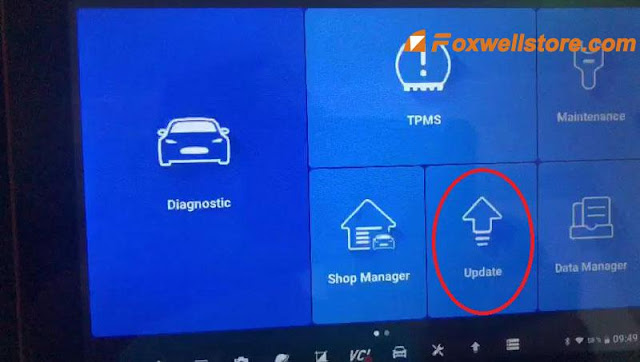
How to Update Foxwell i75TS TPMS Firmware in VCI?
Image
Purchase Foxwell i75TS One Year Update Service and keeping the software up to date is the best way to make sure the normal running of the device. Foxwell i75TS update includes software update & firmware update. Before performing the TPMS firmware update, you’ll have to update the software firstly. Step1. Go to “Update” to upgrade all the latest software available. If it prompts to update the latest TPMS, then continue next step; If not, no need to continue. Step2. Go to “VCI Manager >> TPMS Hardware Update >> VCI(Built-in)” to upgrade TPMS. Note: If you skipped the first step, the i75TS tablet will keep loading or tell “Please download the upgrade file and then try again”. So please follow the steps as above. It may also help: How to register & update Foxwell i75TS TPMS platform? http://blog.foxwellstore.com/how-to-register-update-foxwell-i75ts/ Any questions welcome to contact us. www.foxwellstore.com

How to program T10 TPMS sensor with Foxwell i75TS?

Image
This is a review to quick demonstrate Foxwell i75TS Platform III TPMS , diagnosis, maintenance and settings functions. There are 12 main functions on i75TS scanner Home page: Diagnostic, TPMS, maintenance, shop manager, update, data manager, my account, VCI manager, functions, technical data, remote control, settings. TPMS Service Foxwell i75TS can program TPMS T10 Sensors in ease & fast. Let’s have a try to test its TPMS functions firstly. Connect Bluetooth. VCI >> Bluetooth >> Select, wait until connected. Identify vehicle info TPMS >> Mercedes >> SmartVIN >> Yes >> 2004.09-2011.12(continental 433MHz) Program TPMS sensor Place a T10 Sensor near on i75TS platform, press Programming >> Automatic create(1-16) >> Yes >> Wait processing until 100% Programming success! Press “Trigger”. Left front wheel sensor activation success. Very fast in seconds. To program other sensors, just repeat same operations. It only takes me 2 mi...

How to use Foxwell i75TS Diagnostic & TPMS Platform

Image
  Foxwell i75TS quick start Manual, content incl: registration & upgrad, Vehicle connection  Part 1.  Guide to show the process of Foxwell i75TS TPMS Platform registration & upgrade for the first time. NOTE: please ensure your network is well and the i75TS tablet is fully charged or connect to external power supply. How to register Foxwell i75TS? Press “Update” from diagnostic app on Home page, then press “Free Registration” to start;   Go access your email to get a 4-digit security code by pressing “Send Code”. Enter the code and password, press “Free Registration” to complete; The serial number will be recognized automatically, press “Submit” to activate i75TS scanner . How to update Foxwell i75TS? Press “Update” from diagnostic app on Home page. Or press “Update” shortcut at the tool bar directly; It will display all available software to update on screen. Select the software need to be updated, ...