Posts

Showing posts with the label foxwell f1000b code reader

How to update Foxwell F1000B OBDII & Battery Tester
Image
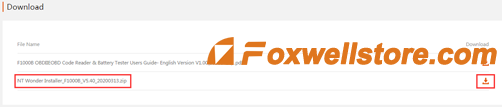
Foxwell F1000B is able to be updated to keep you stay current with the latest development of diagnosis.  To update the OBDII&Battery tester, you need the following tools: ● F1000B OBDII&Battery tester ● Update Tool NTWonder ● PC or laptop with USB Ports and Internet explorer ● USB cable To be able to use the update tool, PC or laptop must meet the following minimum requirements: ● Operation System: Win98/NT, Win ME, Win2000, Win XP, VISTA, and Windows 7. ● CPU: Intel PⅢ or better ● RAM: 64MB or better ● Hard Disk Space: 30MB or better ● Display: 800*600 pixels, 16-byte true color display or better ● Internet Explorer 4.0 or newer IMPORTANT: Do not disconnect the OBDII&Battery tester from the computer, or power off the computer during the process of updating. Here are the steps for updating: 1. Download the update tool NT wonder and update files from this link:  https://www.foxwelltech.us/product-detail-701.html, then save the applications and files on a computer ...
Foxwell F1000B User Manual: How to do Battery Testing

Image
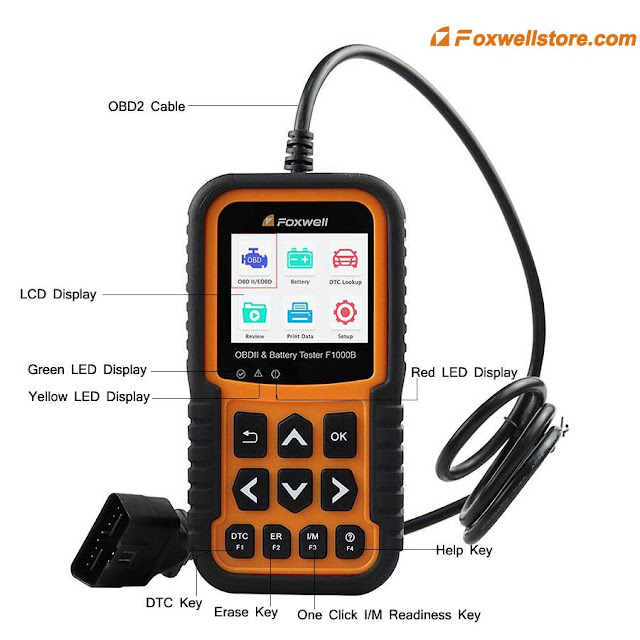
Foxwell F1000B 12 Volt Automotive Battery Analyzer allows you to analyze the health of the battery and view the charge status of the battery. This section describes how to use this F1000B battery tester to test car batteries and charging systems. The menu display will guide you step by step through the testing process. Here are the steps: Step 1. Connecting the F1000B Battery Tester. Connect the red clamp to the positive (+) terminal and the black clamp to the negative (-). The tester turns on automatically when it is properly connected to the battery. Step 2. Select "Battery" in the main interface of the device and select "Battery test". Step 3. Press the ENTER button to start the test. BAT. LOCATION Menu will display. Step 4. Scroll the UP or DOWN button to highlight OUT OF VEHICLE or IN VEHICLE from the BATTERY LOCATION menu and press ENTER to select the battery location. Step 5. Scroll the UP or DOWN button to select the battery type from the BATTERY TYPE menu ...